

Introduction
You start your day confidently by opening Google Search Console, but suddenly your confidence turns into confusion when you see a list of warnings and errors. Every red signal, such as “Not indexed,” “Excluded,” and “Blocked by robots.txt.” makes you feel anxious, especially when you’re unsure what they actually mean for your store. You are trying every possible thing you can do, but still it seems like something is broken in your Shopify store.
No need to worry, because not every signal in Google Search Console needs your attention; some are really crucial to fix, while others are simply informational and don’t require immediate action.
If you are also worried about your Shopify Google Search Console errors and want to know the method to fix them, then this article is for you. This article also explains which issues can affect your store’s search visibility and which may not require any action.
What is Google Search Console?
Google Search Console is a free Google tool that helps website owners monitor how their website is crawled, indexed, and performing in Google Search. Simply, it works like a report card, telling which pages are indexed in search results, which ones need your attention, and which pages Google is struggling with and why.
Here is what it shows:
- Indexing: Pages that are visible on Google search results
- Crawling: Which pages Google has visited
- Structured Data: Structured information that helps Google understand content such as products, prices, availability, reviews, and other page details
- Core Web Vitals: Measures related to loading performance, responsiveness, and visual stability on your pages
- Device Compatibility: How smoothly your app runs on users’ devices
With all these reports, Shopify merchants can optimize their stores and examine the overall performance of their store.
Why Shopify Stores Get Google Search Console Errors
There is no specific or claimed reason why Shopify stores get Google Search Console errors. However, there are some signs, or you can say factors, that may lead to errors:
- A newly opened store probably shows errors because Google hasn’t fully optimized your store yet.
- Theme updates can confuse the page structure, which leads to GSC errors.
- You deleted a product or unpublished a page from the store.
- You made some changes in the collections or reorganized them.
- Missing or invalid product schema markup.
- Due to inventory changes, URLs are removed or updated.
Apart from this, there are many more reasons behind GSC errors.
The Most Common Google Search Console Errors (And How to Fix Them)
Now, let’s come to the common Google Search Console errors you may have seen in your Shopify store but are unable to fix. So, here are all the errors and methods to fix them:
- Page Isn’t Indexed:
This is one of the most common GSC errors, which means your page is published, but search engines haven’t added it to the search results.
The common causes behind this error are:
- The page is too new
- The content of the page is thin
- The content may be duplicate
How to fix this:
- Improve page content
- Link the page internally from other pages
- Most importantly, submit the page directly through the Search Console’s URL Inspection tool
- Crawled, but not indexed:
When a search engine visits your page, but still chooses not to index it in the search results.
Common causes:
- Page is similar to another page
- Content may not have appropriate details of the product
- Google simply is not prioritizing it yet
How to Fix this:
- Don’t give generic details; instead, add some new or unique product details
- Improve internal links to the page
- Wait for some time after executing all required changes; this error resolves on its own once it proves it is worth indexing.
- Duplicate Without User-Selected Canonical
When Google finds multiple webpages and URLs with similar or identical content, without having a specific canonical tag pointing to the main content page, then GSC shows this error.
Fix it:
- Set clear canonical tags so that Google can understand which is the main version.
- Inspect the URLs by pasting the flagged URL into the top search bar in GSC.
- Double-check your theme links to ensure your internal product links point to the clean URL rather than nested collection paths.
- Make sure unnecessary tracking and filter parameters are managed clearly, making it easy for search engines to recognize them as secondary variations.
- Alternate Page With Proper Canonical Tag
Here comes a twist: it is not an error. This is a status by GSC, saying that Google correctly identified your preferred main page via a canonical tag, and chose to index only the main version while skipping the duplicates.
Whenever you see this status on your page, you don’t need to panic; instead, confirm whether Google has selected the page you want for search results. Then, no further actions are needed after the confirmation.
- 404 Not Found
404 Not Found is also one of the most common Google Search Console Errors. It means a user or search engine tries to visit a web address that no longer exists, or has been removed. But 404 is not necessarily a problem. If a page has been permanently removed and has no relevant replacement, returning a 404 is often the correct response.
Common causes:
- You deleted products
- You removed collections
- Changed URL handles during store updates
- Broken link somewhere on your store
If you removed the page for good, then no need to perform any action. In other cases, you can fix this error on your Shopify store with these steps:
- Go to your Shopify admin dashboard.
- Click on Content, then select Menus.
- Click on URL redirects.
- Click Create URL redirect.
- Enter the broken web address in the Redirect from field.
- Enter the active destination page in the Redirect to field.
- Save the redirect.
- Soft 404
A soft 404 occurs when a URL returns a successful response, such as HTTP 200, but the page appears to Google to be a missing or nonexistent page. This confuses search bots and affects your search engine rankings.
Common causes:
- Sold-out or deleted product URLs stay active.
- A collection or inventory page exists but with zero products and details.
- Your broken link automatically redirects to the homepage, instead of showing a ‘not found’ page.
Fix them:
- Create a redirect URL
- Restock products and publish them again
- Fix empty collection pages by adding at least one product
- Redirect Error
A redirect error means search engine bots found a URL that directly sends visitors to different pages. So, Google indexed the page instead of the main one.
Fixing it:
- Identify the broken URL
- Test the redirect path
- Validate the fix with Google
- Server Error
This time, search engines are good, your store is good, but the server doesn’t respond properly. Google bots try to load and crawl your page, but Shopify’s hosting servers fail to fulfill the request.
Common causes:
- The third-party apps you are using on your store may contain heavy and irrelevant data
- Theme code issues in your Shopify store can fail to render URLs
- Temporary Shopify outages
How to fix this error:
- Test the live URL
- Check Shopify recent outage updates
- Remove or disable recent apps that contain heavy data
- Clean up theme code
- Blocked by robots.txt
It means Google crawlers want to visit your store, but your site’s code is blocking them. Generally, it is quite normal for Shopify stores because Shopify automatically blocks bots from crawling sensitive data, backend, and customer data. However, you only need to fix the error if important public pages, like main products or collections, are being blocked by mistake.
How to fix:
- Audit the blocked URLs
- Validate and request reindexing
- Edit your Shopify template
- Excluded by Noindex
Basically, the noindex tag is found in a meta tag or HTTP header on a specific URL that tells Google not to index a particular page in search results.
If you implement this tag intentionally on the policy pages or internal search results, then it will be good, as these pages contain confidential information.
However, sometimes it gets implemented accidentally due to page updates or app updates on pages that should be visible in search results.
How to fix:
- Inspect the URL using the Google Search Console URL Inspection tool
- Check your Shopify store theme code
- Audit recently added SEO, tracking, or product filtering/search apps
- Structured Data Errors:
This error directly indicates that your store’s schema markup is broken or missing required data. Structured data errors can prevent a page from being eligible for certain rich results or enhanced search features.
Common Causes:
- Invalid values
- Missing required values
- Review and rating markup issues
- Incomplete product schema
This error doesn’t only affect your indexing, but also stops search engines from showcasing important store details in search results.
Which Google Search Console Errors Need Your Attention First?
Not every Google Search Console status requires immediate action. The priority depends on the affected URL, the reason for the status, and whether the issue affects important pages. However, some need instant attention, while some can wait, so here we will discuss all the errors priority-wise. So that you can take further action accordingly:
Top Priority Errors: Must Fix As Soon As Possible
- Structured data errors
- Submitted URL blocked
- Server errors
- Page not indexed
Moderate Priority Errors: That Can Wait but Are Worth Checking
- Redirect errors
- Duplicate pages without a clear canonical
- Soft 404
Low Priority Errors: Mostly Errors Are Informational
- Crawled but not indexed
- Alternate page with proper canonical tag
- Some “excluded” URLs
If you are running late or facing continuous errors, then you must start by resolving the priority errors; others can wait, but you must check them once.
How to Prevent Google Search Console Errors on Shopify
Shopify errors are crucial to resolve as soon as possible, but what if you could prevent them before they even happen? Quite effective, right? When you prevent errors, you can not only save your time, but also save your store from unnecessary SEO problems. Here are the ways through which you can prevent Google Search Console Errors on Shopify:
- Submit your sitemap regularly, or after major store changes
- Keep product details and descriptions accurate and logical instead of copying the manufacturer’s text
- Always check the data structure when changing the theme, updating the store, and installing a new app
- Avoid blocking pages by robots.txt, unless and until you want them to be excluded
- Monitor or check Google Search Console frequently to ensure better error detection and fixing
- Keep product details and overall information accurate and up-to-date
Can InstaIndex Help Fix Google Search Console Errors?
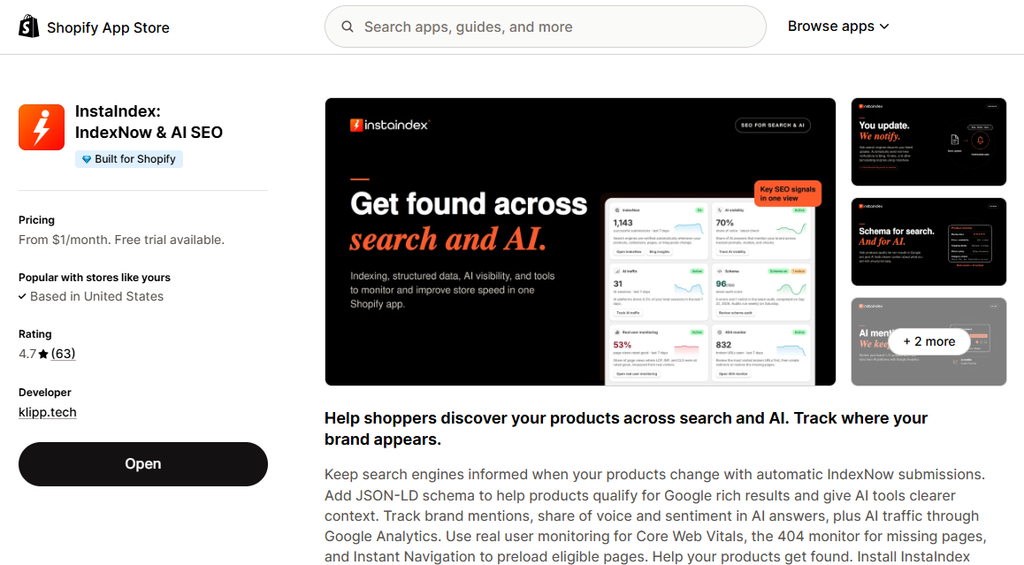
Most of the time, ‘yes’, but sometimes it may not! Actually, Shopify SEO apps help in common areas like schema and structured data errors. So, you don’t need to manually monitor Google Search Console every day or week just to fix these errors.
But when you talk about errors beyond the common ones, then InstaIndex will help you to detect them, understand them, and may fix them. Here is how InstaIndex helps:
- Identify schema issues before they pop up in the Google Search Console.
- Improve your store data and make it structured, helping search engines understand price, discounts, and reviews easily.
- Helps your store to get better visibility not only in search engines but also in AI search results.
- InstaIndex also provides multi-language and market support.
- Most importantly, we provide AI support backed by human experts that solves your problems instantly with effective methods.
Final Thoughts
Google Search Console errors aren’t something to fear; they are signals that help you understand what may need your attention. Some errors need immediate fixing, while others are just Google’s way of pointing out something that may not require your attention; they are just like a notification.
All you need to do is focus on fixing the serious errors, such as indexing issues, server errors, and incorrect canonical tags. The rest may resolve on their own; no need to waste your time- better spent on your store growth maximization.
However, if you solely want to focus on upgrading your store, maximizing revenue, and implementing new strategies, then you must have an automated and hassle-free tool like InstaIndex. It will monitor errors in the background, catching schema issues early, keeping your product data accurate, and reducing the time you spend manually fixing SEO issues.
Install InstaIndex Now.
FAQs
- Why is my Shopify store showing Google Search Console errors?
Shopify stores can show GSC errors for several reasons, including new pages, theme or app changes, deleted products, URL changes, missing schema, inventory updates, and other technical SEO issues. - Which Google Search Console errors should Shopify merchants fix first?
Start with issues that can affect important pages or search visibility, such as server errors, submitted URLs blocked from crawling, serious indexing issues, and structured data errors. Other statuses may need less immediate attention depending on the page. - What does “Page Isn’t Indexed” mean in Google Search Console?
It means Google has not added the page to its search index. The page may be new, have thin or duplicate content, lack internal links, or simply not have been processed yet. You can inspect the URL and request indexing after making necessary improvements. - What is the difference between “Crawled – Currently Not Indexed” and an indexing error?
“Crawled – Currently Not Indexed” means Google has already visited the page but has not chosen to include it in its index. This can happen when content is similar to other pages, provides limited additional value, or has not yet been prioritized for indexing. - Is “Alternate Page With Proper Canonical Tag” a Google Search Console error?
No. This is generally an informational status rather than an error. It means Google found another version of the page and correctly identified the canonical version. You mainly need to check that Google selected the page you actually want indexed. - How do I fix 404 errors on my Shopify store?
If the page has been permanently removed and there is no useful replacement, a 404 may be appropriate. If the page has moved to another relevant URL, you can create a URL redirect in Shopify from the broken URL to the active destination page. - Can robots.txt or a noindex tag prevent Shopify pages from appearing on Google?
Yes. A robots.txt rule can prevent Google from crawling a URL, while a noindex directive tells Google not to include a page in its search index. If an important product or collection is affected accidentally, investigate the relevant theme, app, or SEO settings. - What are structured data errors in Google Search Console?
Structured data errors occur when schema markup contains missing, invalid, incomplete, or conflicting information. For Shopify stores, this can involve product details such as price, availability, ratings, or reviews, potentially affecting eligibility for enhanced search features. - How can I prevent Google Search Console errors on my Shopify store?
Regularly monitor GSC, keep product information accurate, check your sitemap, review technical settings after theme or app changes, avoid accidentally blocking important pages, and monitor structured data for errors or conflicts. - Can InstaIndex help Shopify merchants with Google Search Console errors?
InstaIndex can help with areas such as schema monitoring and optimization, structured product data, indexing-related workflows, AI visibility, and ongoing monitoring. It can reduce some manual SEO work, although not every type of Google Search Console error can be fixed automatically by an app.
Leave a Reply